Photo and video editing laptops, part 2: Which limit each editing application reaches first
A laptop may handle one editing application well but struggle with another because the applications make different demands on it. Lightroom slows down over a long session, Capture One depends on the camera connection, AI tools lean on graphics hardware, Premiere depends on the video format and the effects, Resolve depends on graphics memory, and Final Cut needs a Mac. When choosing a laptop, focus on the first problem you're likely to encounter in your own software, then test for it with your own files. Whether you buy a new laptop or a refurbished laptop, choose one that suits your software and test it with your own files.
Parka Blogs’ November 2021 review shows why you should test the software you use with your own files. The reviewer had a loaned Dell Latitude 9520 2-in-1 with a Core i5-1145G7, Iris Xe graphics, 16 GB of memory and a 1 TB drive. In Lightroom Classic, the laptop exported 100 RAW files, each 16 MP, in 2 minutes and 1 second and remained usable for other work during the export. In Premiere, repeated crashes kept the reviewer from assessing the laptop's performance. One loaned laptop is a reason to test, not a reason to avoid a brand.
Part 1 explained what each part of a laptop does when you edit photos or video. Next comes the software, whether you're a hobbyist sorting holiday photos or an editor working to a deadline. Software requirements change with each version, so the figures for those requirements are current as of October 2026.
Lightroom and Photoshop: where a long session slows down
First, check which application is slowing down. Lightroom Classic works from a local catalogue and its previews, while Lightroom desktop is a separate, cloud-oriented product with its own storage and synchronisation behaviour. Adobe Camera Raw is the RAW editor inside Photoshop and Bridge, and Bridge is a file browser. In early 2026, a laptop owner posting in Reddit's Lightroom community described extreme delays while updating AI settings for 2,939 Canon R6 II photographs. Their laptop had a Core i9-13900H, an RTX 4060 and 32 GB of memory. They were running Lightroom desktop, not Lightroom Classic, with about 20 GB of memory in use. The post gives no indication of how long the Denoise feature took and no proof that 32 GB was too little, so test a small set of photographs before blaming the laptop.
A long session shows what a short one hides. In August 2023, a photographer on the Lightroom Queen forum moved from a 16-inch M1 Pro with 16 GB to a 14-inch M2 Max with 32 GB, using Canon R5 files in Lightroom Classic 12.4 on macOS 13. Culling went well at first. After preset synchronisation and more edits, delays grew and became noticeable at about 60 to 90 photographs. Later, memory use and fan activity increased, and the crop tool became choppy. The post does not identify a cause, and doubling the memory while moving up a chip class did not remove the problem. In a different thread on the same forum, a March 2022 reply said work ran smoothly on a 14-inch M1 Pro with 32 GB; it was a personal account, not a timed test.
In Photoshop, too little working room can show up as a pause when you open a second large file, a brush that turns jerky while another task runs, a wait after you switch back from Lightroom, or a Smart Object update that leaves you waiting. Each is a clue to check memory, scratch storage (drive space used as extra working room) and that operation, not proof of one cause. As of October 2026, Adobe lists 8 GB of RAM for Photoshop 27.x and recommends 16 GB of RAM. For Lightroom Classic 15.x, Adobe also lists 8 GB of RAM and recommends 16 GB of RAM. Its more detailed guidance gives figures as high as 8 GB of dedicated graphics memory on Windows or 16 GB of unified memory on Apple silicon. On Apple silicon, the processor and graphics share that memory.
The short test: work through a real batch for an hour. Note how quickly the sliders respond and how long it takes to move between images, both near the start and near the end of the hour. Synchronise your edits and revisit earlier photographs. A short test on a clean catalogue can miss a slowdown that develops in a longer session, and a RAM-cleaning utility is not a proven cure.
Capture One: a shoot is a better test than one photograph
Capture One makes the laptop part of the camera setup. In a tethered session, you connect the camera, then keep the session open as you take photographs, check focus and exposure, select and adjust images, export them and start another round. Capture One lets you work in a Catalog or a Session. In a tethered studio shoot, how quickly images arrive, whether the cable connection stays stable, how files are named, how easily you can review shots as they arrive and whether the laptop stays responsive during an export can all matter more than how fast a processor finishes an unrelated render.
Laptop Mag reviewed an HP ZBook Studio G8 with a Core i9-11950H, 32 GB of memory, a 2 TB drive, an RTX 3070 and a 4K screen. The reviewer said Capture One stayed responsive during tethered shooting and the laptop stayed usable while exporting photographs next to a busy browser session. The reviewer also used Premiere and Resolve without trouble, but did not describe any video project in enough detail for the results to count as a benchmark. They also raised concerns about heat and battery life. The review does not show that a laptop with integrated graphics, which are built into the processor, cannot handle the studio photography workflow described here. It does show that dependable capture, images that arrive quickly and a laptop that stays responsive can matter more to a studio photographer than a single processor score.
As of October 2026, Capture One lists 8 GB of memory as its baseline. For higher-resolution and advanced work, it recommends an SSD, more memory and stronger graphics. On a Mac, its guidance points to an Apple silicon Pro, Max or Ultra chip with 32 GB or more of memory; on Windows, it points to a graphics card with 8 GB or more of dedicated memory. A USB-C port alone does not guarantee cable speed or camera compatibility, so check the camera, tethering utility and any plug-ins on the system version you will use, not only that the editor opens.
The short test: Shoot with your own camera and cable. Note any disconnects and how long it takes before you can review an image. Check how quickly the laptop responds when you inspect focus at 100% magnification, whether exporting interrupts capture, whether the cable is under strain and how well you can see the screen. Repeat the test with the external monitor and drive you will use at work.
DxO and Topaz: the limit is the graphics or AI hardware
AI photo tools often hit the limits of their graphics or AI hardware before they run out of memory. DxO PhotoLab is a RAW editor. DxO PureRAW is mainly a preparation and correction step that can feed another editor. DeepPRIME and DeepPRIME XD are processing modes, not hardware specifications. Results from one mode, image size or software version won't necessarily apply to another. Topaz Photo and Topaz Gigapixel enhance and upscale images. Topaz Video processes moving images, which takes a lot of computing power. Older reviews call them Topaz Photo AI, Gigapixel AI and Video AI, so a test using any one of those names covers that product as it was at the time.
As of October 2026, DxO PhotoLab 10 lists 16 GB of memory as its baseline on Windows and Mac. DxO's Windows notes list the hardware options that support AI processing, including graphics configurations with 8 GB of memory and an option using Intel AI Boost. Its Mac notes distinguish functions that need Apple silicon from those that do not. An old laptop that runs PhotoLab may therefore not run its newest AI tools. On Windows, Topaz Video lists a baseline of 16 GB of memory and dedicated graphics with 6 GB of memory. Topaz says some integrated graphics setups are supported on Windows but have severe practical limits.
One user's timings show why memory alone doesn't determine how long an export takes. In March 2024, a user on the Tom's Hardware forum upscaled a 133-second Full HD clip to 4K in Topaz Video AI 4.0.9. A laptop with a Core i9-13900HX, an RTX 4060 with 8 GB of graphics memory (VRAM) and 32 GB of RAM took 662 seconds, or 11 minutes 2 seconds. A laptop with a Core i9-12950HX, an RTX 3080 Ti with 16 GB of VRAM and 64 GB of RAM took 878 seconds, or 14 minutes 38 seconds. The user did not specify the AI model, the full export settings or the driver setup. This is a 2024 result for the older product, so it does not prove that an RTX 4060 beats every RTX 3080 Ti or tell you how today's Topaz Video will perform.
The short test: Choose the exact AI model, scale factor, input resolution, output codec and a representative clip. Record how long the export takes and whether you can still use the laptop while it runs. Our guide to RAM and VRAM on AI laptops goes deeper on graphics memory.
Premiere: why 1080p can be harder than 4K
Resolution is only one factor in how demanding a Premiere project is. As of October 2026, Adobe recommends 16 GB of memory for HD and 32 GB or more for 4K in Premiere 26.x on Windows. Both sit above the installation minimum and are starting points: the footage and effects also affect how smoothly editing runs. In January 2026, a MacBook Pro owner wrote in Reddit's Premiere community about heavy swap activity and graphics-related crashes in Premiere 26.0 on macOS 26.2. Swap activity means the system uses its drive as extra memory. The laptop was a 2021 MacBook Pro with an M1-family chip and 16 GB of memory. Its owner was editing long-form 1080p video with many motion-graphics templates and graphics effects. The post does not give enough detail to identify the exact M1 chip, and it names no cause. It still suggests that a long, graphics-heavy 1080p production can be harder to edit than a straightforward 4K sequence that decodes smoothly.
On Windows, many laptops pair integrated graphics with an NVIDIA graphics card. Premiere can use the media engine in the integrated graphics to decode video and the NVIDIA card to process effects. Seeing activity on the integrated graphics does not mean Premiere has chosen the wrong device, and turning off the integrated graphics will not fix every problem. A feature of a newer RTX series does not automatically come with a refurbished RTX 30 or 40 series laptop just because both carry the RTX name.
A software problem can also overwhelm a strong laptop. In April 2025, a Legion 5 Pro owner with a Ryzen 7 6800H and an RTX 3070 Ti described a stalled playhead, sluggish scrolling and responses that took several seconds in Premiere. A much older GTX 1070 laptop handled the same situation better. Changing the audio input helped for a while and then stopped helping. The discussion did not establish a hardware cause or find a lasting fix. After updates, test how Premiere responds while you edit, and don't assume every delay means the graphics card is underpowered.
The short test: Play the original files, seek through them and watch for dropped frames. Switch the effects on, make proxies (smaller editing copies) and measure how long making them takes, then compare exports made with matching settings. Check the original files before blaming the drive or the memory.
Resolve and After Effects: cuts, finishing and graphics memory
DaVinci Resolve has several workspaces: Media, Cut, Edit, Fusion for compositing, Color, Fairlight for audio and Deliver. A quick cut on the Edit page does not test a Fusion composition or temporal noise reduction, which removes noise using neighbouring frames. As of October 2026, Resolve needs at least 8 GB of memory on a Mac, or 16 GB for Fusion. For the Studio edition's advanced AI features, Blackmagic lists 16 GB of graphics memory on Windows and Linux and 16 GB of memory on Apple silicon. Studio's background-processing features have further requirements. The extra requirements do not apply to every cut, grade or older AI effect.
The free and Studio editions differ in platform, licence and codec support. Blackmagic's codec table does not support the claim that every free edition rejects every 10-bit file, so check the exact row for your system and codec. Buying Studio cannot add missing graphics memory. A graphics card with 4 GB of graphics memory can handle basic work where the features are supported, but it is a less reliable choice as high-resolution effects become more demanding. An RTX laptop with 8 GB of graphics memory and 32 GB of RAM is a more promising choice for regular editing and effects, provided it supports the codecs and features you need. But it still falls short of a feature that requires 16 GB of graphics memory.
In 2026, an owner on Reddit's Resolve community reported lag after installing Resolve on an HP ProBook 450 G5 with a Core i5-8250U, 8 GB of memory and a GeForce 930MX with 2 GB of graphics memory. That falls below the Windows baseline of 16 GB of memory and 4 GB of graphics memory. Upgrading the ProBook to 16 GB of memory would fix one shortfall, but it would still have the old graphics card. An NVIDIA graphics card alone does not make a laptop a good buy for Resolve today, though that ProBook can still be useful for lighter work.
After Effects has its own requirements. As of October 2026, Adobe's requirements for After Effects 26.x start at 16 GB of RAM and recommend 32 GB or more of RAM for higher-resolution work. Its Windows graphics requirements are stricter than 'any integrated graphics will do': for discrete Intel or AMD graphics, Adobe lists 4 GB or more of graphics memory. For regular use, compare laptops with at least 32 GB of RAM. Multi-Frame Rendering, which renders several frames at once, needs enough memory and a suitable composition, so more processor cores do not guarantee a proportional increase in rendering speed.
Which platform wins depends on the application. In March 2024, Puget Systems compared two laptops: an M3 Max MacBook Pro with 64 GB of RAM and a PC with 64 GB of RAM, a Core i9-14900HX and an RTX 4090 Laptop GPU. The comparison covered Photoshop 25.4, After Effects 24.0.3, Premiere Pro 24.1 and Resolve 18.6.4. The Mac led the overall Photoshop and After Effects results by about 30%. The laptops were close overall in Premiere, while the PC led overall in Resolve and in several graphics-heavy tasks. A single overall score would hide those differences. The short test: Add effects and nodes one at a time. Note whether each effect or node changes how quickly the app responds, how the cache behaves or the output. Check that each feature is supported before comparing speed.
Final Cut, social and free editors: platform and edition decide
Some limits come from the platform or the edition rather than the hardware:
- Final Cut Pro: Final Cut Pro for Mac requires a Mac. Adding memory or an NVIDIA graphics card won't make a Lenovo, HP or Dell laptop a substitute. The iPad versions are separate products. Compatible Apple media engines can help process supported ProRes video. Optimized media (copies the application creates for editing) can make your library much larger, so leave enough space on the drive for those generated files.
- Final Cut Pro with add-ons: In 2026, an owner of an M1 Max MacBook Pro with 64 GB of memory wrote in Reddit's Final Cut Pro community that Sony 4K S-Cinetone footage worked without proxies. They also described lag, crashes and export trouble while editing from an external Thunderbolt NVMe drive and using third-party transition and template packages and Compressor. The post does not show that any particular plug-in, the external drive or any other hardware caused the lag, crashes or export trouble. Test the original footage and the finishing stack separately, and check that your macOS version supports both the current Final Cut Pro and your plug-ins.
- CapCut: Note whether you use the desktop, browser or mobile version, which plan you have, and which features run on the laptop rather than online. Downloading captions or using a cloud feature won't reliably show how the laptop's processor performs. Simple 1080p edits with a limited number of effects may work on a supported laptop with 16 GB of memory and integrated graphics, and more graphics power and memory help as effects, resolution and project size grow.
- CyberLink PowerDirector: PowerDirector 365 and PowerDirector 2026, which has a perpetual licence, are different editions. CyberLink's current support guidance says 10-bit HDR timeline editing is available in the relevant 365 releases from January 2026. The 2026 edition, by contrast, converts imported 10-bit HDR to 8-bit SDR, so a better screen or graphics card won't change what the installed edition does.
- Kdenlive and Shotcut: These free editors are separate products. Kdenlive's documentation describes proxy clips and preview rendering as ways to improve performance, and Shotcut's hardware encoding does not mean every filter runs on the graphics card. These editors may help you finish a project reliably and affordably, even if they don't play back every camera format instantly. Changing operating systems won't add decoding hardware the laptop lacks.
Testing a refurbished laptop: six sessions in the return window
A refurbished laptop from refurbed is professionally tested, cleaned and reconditioned, and comes with a minimum 12-month warranty and a 30-day return window. Use that window to run a session that matches your software. Start with Part 1's condition checks (power and battery, the screen, memory and drive, ports and cooling). Then make these additional checks to see how the laptop handles your software:
- Identify what arrived: Compare the installed processor, graphics card and its memory, RAM, storage and screen with the listing. A replaced screen or a different graphics variant changes how you assess the laptop. The maker's service manual shows your upgrade options.
- Check your software setup: Install the editor and plug-ins you need. Check your licence and the edition of the software, then confirm that the software supports your camera and works with the laptop's system. A preinstalled application is not a transferable licence.
- Use your real media: Bring one ordinary file and one demanding file. For video, write down the full codec details, and for photos use your camera's RAW format at a representative size. Do a short edit, then save, export and reopen the project. Check how the result looks and listen if it has sound.
- Run long enough: Repeat edits, switch between applications and run one long processing job using the charger you plan to use. Then try those tasks briefly on battery.
- Connect the whole setup: Plug in the camera, external drive, monitor, card reader and dock together, then resume from sleep and reopen the project. Test the internal screen, the docked setup and resume from sleep separately, because a problem can show in one and not in the others.
Six sessions cover different kinds of editing. They're suggested tests, not measured results, so no timings or scores come with them:
- Product photos: Using an editing setup built around Affinity or GIMP, prepare 30 product photos: crop them, correct the colour, clean up the backgrounds, make one modest layered graphic and export the photos for the web.
- A photographer's day: Cull 300 RAW files from one camera with a resolution of 24 to 45 MP. Adjust 40 of them, apply the same masks to ten and retouch five in Photoshop.
- A tethered shoot: Use Capture One with your real camera and cable. Capture 100 frames, inspect them at 100%, apply a Style and export selected images while capture continues.
- One 4K edit, three formats: Cut a five-minute Premiere sequence with dialogue, two video layers, basic colour work and titles. Use separate sets of footage: 4K H.264 8-bit 4:2:0, HEVC 10-bit 4:2:2 and an intraframe version that's easier to edit. Keep the three results separate.
- Cuts, then a grade, then an effect: Play the same short UHD sequence in Resolve, first as plain cuts, then with a grade you've defined, and finally with one temporal effect or a supported AI operation.
- Motion graphics and AI, separately: Run an After Effects composition with fixed preview and output settings. Then process a clip in Topaz Video at a fixed scale, and record the model you use. Do not average the two results.
Keep a diary: the wait for the first usable image and between images, brush response, playback, preparation and export time, what happens when you reopen the project, noise, heat, battery behaviour and errors, with the first run and a repeat run kept apart. Then ask what would remove the interruption that matters to you: more memory, a suitable decoder, a better screen, a quieter laptop, a different edition or a different laptop. Browse refurbished laptops and MacBooks with that answer in hand.
Buying a refurbished laptop: CO₂e, water and e-waste savings
A laptop chosen for the software it runs, and checked on your own files, is less likely to be replaced early. Where a model allows it, a memory or drive upgrade can keep a laptop going, and a refurbished laptop that already meets the job gives an existing machine another life.
Each refurbished laptop sold on refurbed carries verified environmental savings compared to buying new. Based on scientific research by Fraunhofer Austria (ISO 14040/14044 verified):
↓ Lenovo ThinkPad X1 Carbon G6 | i7-8650U | 14" (256 GB): SAVED 252.3 kg CO₂e | 64,271.1 L water | 1211.5 g e-waste
↓ HP EliteBook 840 G5 | i5-8350U | 14" (256 GB): SAVED 348.1 kg CO₂e | 88,469.4 L water | 1565 g e-waste
↓ Dell Precision 5530 | i7-8850H | 15.6" (240 GB): SAVED 424.8 kg CO₂e | 107,735.6 L water | 1839.6 g e-waste
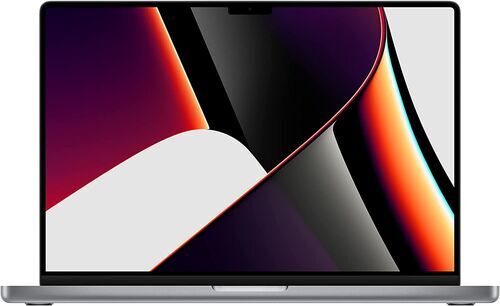
↓ Apple MacBook Pro 2021 M1 | 16.2" (512 GB): SAVED 510.3 kg CO₂e | 129,364.8 L water | 2157.7 g e-waste
These four laptops are examples: each line uses the model's smallest storage size, and every other model has its own figures.
Frequently asked questions about editing software and laptops
Is Lightroom the same as Lightroom Classic?
No. Lightroom Classic works from a local catalogue and previews. Lightroom desktop is a separate, cloud-oriented application that stores and synchronises files differently from Lightroom Classic. Camera Raw and Bridge are different again, so name the application you mean when you ask about speed.
Can a Lenovo, HP or Dell laptop run Final Cut Pro?
No. Final Cut Pro for Mac requires a Mac, and adding memory or an NVIDIA graphics card does not change that. The iPad versions are separate products. On Windows, editors such as Premiere, Resolve or Vegas Pro are the options to compare.
Is 1080p video always easier to edit than 4K?
No. Output resolution is only one factor in how demanding a project is to edit. A long 1080p project with many motion-graphics templates and graphics effects can be harder on a laptop than a straightforward 4K sequence that the laptop can decode efficiently. So consider what you add to the footage, not just its resolution.
Does DaVinci Resolve Studio need a stronger laptop than the free version?
Not by itself. Studio cannot add missing graphics memory, and the two editions differ in platform, licence and codec support, so check the requirements for your system and codec. Studio's advanced AI features list 16 GB of graphics memory on Windows and Linux, which applies to those features, not every edit.
Should I switch off integrated graphics so Premiere uses the NVIDIA card?
Not as a general rule. On a laptop with both, Premiere can use the integrated graphics' media engine to decode video and the NVIDIA card to calculate effects. So seeing the integrated graphics in use does not mean Premiere chose the wrong device. Test your actual project before changing graphics settings.
Does a MacBook or a Windows laptop win for photo and video editing?
Neither wins everywhere. In Puget Systems' March 2024 test of two laptops with 64 GB of memory each, the Mac led the overall Photoshop and After Effects results by about 30%. Premiere was close, while the PC led overall Resolve and several graphics-heavy tasks. The winner changed with the application.
Does an AI tool such as Topaz Video need more RAM or a stronger graphics card?
The graphics side matters first, and the balance depends on the AI model. In one owner's 2024 comparison, a laptop with 64 GB of RAM and 16 GB of graphics memory took longer on a Topaz Video AI job than one with 32 GB and 8 GB, with the settings not given. Topaz Video lists 16 GB of memory and a 6 GB dedicated-graphics baseline on Windows.
Is PowerDirector 365 the same as PowerDirector 2026?
No. CyberLink's current support guidance says 10-bit HDR timeline editing is available in the relevant 365 releases from January 2026. The perpetual 2026 edition converts imported 10-bit HDR to 8-bit SDR. A better screen or graphics card does not change what the installed edition does.
Find the laptop that fits the software you use
Once you know which limit you would hit first in each editing application, you can choose a laptop for the software you use and try a real project on it before deciding whether to keep it.
refurbed is a marketplace where shoppers find refurbished electronics from sellers who keep devices in use, and it won the ESG Innovation Award at the Business & Finance ESG Awards 2023.
Each laptop includes at least 12 months of warranty and a 30-day return window, so you can try your own project before the window closes. See which refurbished laptop suits your software.


Sign up for our newsletter for the first time and save 65 zł!
Never miss an offer again.
Information about the use of personal data can be found in our Privacy policy.
Get the refurbed app
For iOS and Android


Confirm sign-up
Almost done: We’ve sent you a confirmation email
- © Refurbed Marketplace GmbH
- Accessibility
- T&C
- Privacy Policy
- Imprint
- Legal Notices
- European Data Act
- Cookie Policy